Building an AI Database Assistant with SingleStore and MCP Toolbox for Databases
Why MCP for Database Access?
Model Context Protocol (MCP) standardizes how AI assistants interact with external tools. Instead of copying query results back and forth between your database client and chat window, MCP lets the AI execute queries directly against your database within guardrails you define.
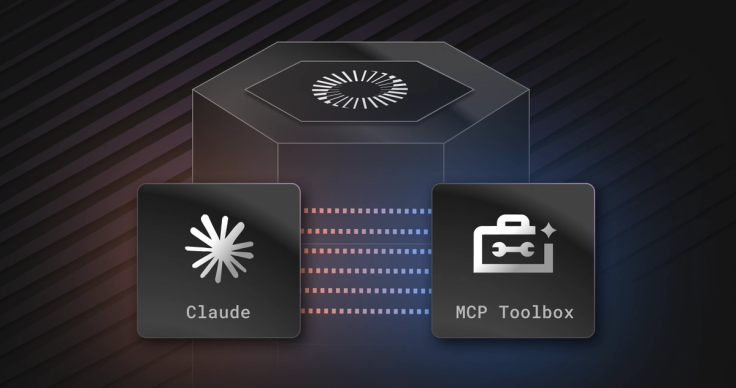
This tutorial walks through connecting SingleStore to an MCP client using MCP Toolbox—an open-source MCP server that handles connection pooling, query execution, and schema introspection.

When you ask a question, the MCP client sends your prompt plus available tool schemas to the LLM. The LLM decides which tool to call and with what parameters. The MCP client executes the tool call via Toolbox, which runs the query against SingleStore and returns results. The LLM then formats the response.
What You'll Build
By the end of this tutorial, you'll have an AI assistant that can:
- Explore database schemas through conversation
- Generate and execute SQL queries from natural language
- Answer business questions without writing SQL
- Explain query results in plain English
- Handle follow-up questions with full context
Prerequisites
- SingleStore Instance: Sign up for free tier or use existing instance
- MCP Toolbox: We'll install and run this in the setup steps. You can choose running the server locally or using docker
- MCP Client: Claude Desktop, Cursor, or any MCP-compatible IDE
- Sample Database: We'll create an e-commerce demo database
Part 1: Set Up SingleStore Database
First, let's create a sample e-commerce database to work with.
1.1 Connect to SingleStore
1# If using SingleStore Cloud, get connection details from portal2# Example connection:3mysql -h <your-host> -P <port> -u <username> -p'<password>' <database-name>
1.2 Create Sample Database
Copy and run this SQL to create our e-commerce schema:
1-- Customers table2CREATE TABLE customers (3    customer_id BIGINT AUTO_INCREMENT PRIMARY KEY,4    customer_name VARCHAR(100) NOT NULL,5    email VARCHAR(100) NOT NULL,6    state VARCHAR(2),7    city VARCHAR(100),8    signup_date DATE,9    INDEX idx_state (state)10);11
12-- Products table13CREATE TABLE products (14    product_id BIGINT AUTO_INCREMENT PRIMARY KEY,15    product_name VARCHAR(200) NOT NULL,16    category VARCHAR(50),17    price DECIMAL(10, 2),18    stock_quantity INT DEFAULT 0,19    INDEX idx_category (category)20);21
22-- Orders table23CREATE TABLE orders (24    order_id BIGINT AUTO_INCREMENT PRIMARY KEY,25    customer_id BIGINT NOT NULL,26    order_date DATETIME DEFAULT NOW(),27    total_amount DECIMAL(10, 2),28    status VARCHAR(20) DEFAULT 'pending',29    INDEX idx_order_date (order_date),30    INDEX idx_customer (customer_id)31);32
33-- Order items table34CREATE TABLE order_items (35    order_item_id BIGINT AUTO_INCREMENT PRIMARY KEY,36    order_id BIGINT NOT NULL,37    product_id BIGINT NOT NULL,38    quantity INT NOT NULL,39    price DECIMAL(10, 2) NOT NULL,40    INDEX idx_order (order_id)41);42
43-- Insert sample data44INSERT INTO customers (customer_id, customer_name, email, state, city, signup_date) VALUES45    (1, 'Alice Johnson', 'alice@example.com', 'CA', 'San Francisco', '2024-01-15'),46    (2, 'Bob Smith', 'bob@example.com', 'NY', 'New York', '2024-02-20'),47    (3, 'Carol White', 'carol@example.com', 'CA', 'Los Angeles', '2024-03-10'),48    (4, 'David Brown', 'david@example.com', 'TX', 'Austin', '2024-01-25'),49    (5, 'Eve Davis', 'eve@example.com', 'WA', 'Seattle', '2024-04-05');50
51INSERT INTO products (product_id, product_name, category, price, stock_quantity) VALUES52    (1, 'Laptop Pro 15', 'Electronics', 1299.99, 50),53    (2, 'Wireless Mouse', 'Electronics', 29.99, 200),54    (3, 'Office Chair', 'Furniture', 299.99, 75),55    (4, 'Desk Lamp', 'Furniture', 49.99, 150),56    (5, 'USB-C Cable', 'Accessories', 12.99, 500);57
58INSERT INTO orders (order_id, customer_id, order_date, total_amount, status) VALUES59    (1, 1, '2024-10-15 10:30:00', 1329.98, 'completed'),60    (2, 2, '2024-11-20 14:15:00', 349.98, 'completed'),61    (3, 3, '2024-12-05 09:45:00', 62.97, 'shipped'),62    (4, 1, '2024-12-18 16:20:00', 299.99, 'pending'),63    (5, 4, '2024-11-10 11:00:00', 1312.98, 'completed');64
65INSERT INTO order_items (order_id, product_id, quantity, price) VALUES66    (1, 1, 1, 1299.99),67    (1, 2, 1, 29.99),68    (2, 3, 1, 299.99),69    (2, 4, 1, 49.99),70    (2, 4, 1, 49.99),71    (3, 2, 2, 29.99),72    (3, 5, 1, 12.99),73    (4, 3, 1, 299.99),74    (5, 1, 1, 1299.99),75    (5, 5, 1, 12.99);76
Your database is now ready! Let's verify:
1-- Quick verification2SELECT 'Customers' as table_name, COUNT(*) as row_count FROM customers3UNION ALL4SELECT 'Products', COUNT(*) FROM products5UNION ALL6SELECT 'Orders', COUNT(*) FROM orders7UNION ALL8SELECT 'Order Items', COUNT(*) FROM order_items;
You should see 5 customers, 5 products, 5 orders, and 10 order items.
Part 2: Install and Configure MCP Toolbox
MCP Toolbox for Databases is an open-source MCP server for database connectivity. It manages connection pooling, exposes schema introspection tools, and executes queries on behalf of MCP clients.
2.1 Create SingleStore Configuration
Create a configuration file that specifies connection parameters for your SingleStore database. You can define custom tools available to MCP clients here as well.
Create singlestore-config.yaml:
1# singlestore-config.yaml2sources:3 my-singlestore:4 kind: singlestore5 host: ${SINGLESTORE_HOST}6 port: ${SINGLESTORE_PORT}7 database: ${SINGLESTORE_DATABASE}8 user: ${SINGLESTORE_USER}9 password: ${SINGLESTORE_PASSWORD}10 queryTimeout: 30s# singlestore-config.yaml11sources:12 my-singlestore:13 kind: singlestore14 host: ${SINGLESTORE_HOST}15 port: ${SINGLESTORE_PORT}16 database: ${SINGLESTORE_DATABASE}17 user: ${SINGLESTORE_USER}18 password: ${SINGLESTORE_PASSWORD}19 queryTimeout: 30s
2.2 Set Environment Variables
Create .singlestore.env file with your connection credentials. Replace the values with your actual SingleStore credentials.
1SINGLESTORE_HOST=<your-host>2SINGLESTORE_PORT=<your-port, usually 3306>3SINGLESTORE_DATABASE=<your-database>4SINGLESTORE_USER=<your-username>5SINGLESTORE_PASSWORD=<your-password>
Secure the file:
1chmod 600 .singlestore.env2
2.3.1 Install and run MCP Toolbox on your local machine
1# Download the latest release, visit https://github.com/googleapis/genai-toolbox/releases2# if the links below don't work or your OS is not listed here3
4export VERSION=0.32.05# For macOS (Apple Silicon):6curl -L -o genai-toolbox https://storage.googleapis.com/genai-toolbox/v$VERSION/darwin/arm64/toolbox7
8# For macOS (Intel):9curl -L -o genai-toolbox https://storage.googleapis.com/genai-toolbox/v$VERSION/darwin/amd64/toolbox10
11# For Linux:12curl -L -o genai-toolbox https://storage.googleapis.com/genai-toolbox/v$VERSION/linux/amd64/toolbox13
14chmod +x genai-toolbox15# Move to your /usr/local/bin/ or other place in PATH16sudo mv genai-toolbox /usr/local/bin/17
18# Verify installation19genai-toolbox --version
To start the MCP Toolbox server, run
1# Load environment variables2export $(cat .singlestore.env | xargs)3
4# Start MCP Toolbox5genai-toolbox --config singlestore-config.yaml
You should see output indicating the MCP server is running and tools are registered. You can stop the process with Ctrl+C after checking that genai-toolbox can be started with your config.
2.3.2 Install and run MCP Toolbox with Docker
If you prefer Docker over installing a binary, you can run MCP Toolbox as a container. This approach also lets you run Toolbox on a remote machine and connect to it over the network.
Pull the Image
1export VERSION=0.32.02docker pull us-central1-docker.pkg.dev/database-toolbox/toolbox/toolbox:$VERSION
Run the Container
Make sure your singlestore-config.yaml and .singlestore.env files exist in the current directory (from steps 2.2 and 2.3), then run:
1docker run -d --name mcp-toolbox \2 -v "$(pwd)/singlestore-config.yaml:/app/config.yaml" \3 --env-file .singlestore.env \4 -p 5001:5000 \5 us-central1-docker.pkg.dev/database-toolbox/toolbox/toolbox:$VERSION \6 --prebuilt singlestore \7 --config /app/config.yaml \8 --address 0.0.0.0
Flags to note:
- -d runs the container in the background so it stays up as a persistent server.
- --address 0.0.0.0 binds to all network interfaces inside the container (the default 127.0.0.1 would only be reachable from inside the container itself).
- -p 5001:5000 forwards container's port 5000 where toolbox server is running to the host's port 5001. You may choose another available port.
Verify it's running:
1# Check container logs2docker logs mcp-toolbox3
4# Test the HTTP endpoint (from the same machine)5curl http://127.0.0.1:5001
If you're running this on a remote server, replace 127.0.0.1 with the server's IP or hostname. Make sure port 5001 is open in your firewall.
To stop and remove the container:
1docker stop mcp-toolbox && docker rm mcp-toolbox
Part 3: Connect Your MCP Client
Now let's connect an AI client to use these tools. We'll use Claude CLI as an example, but the process is similar for Cursor, Cline, or other MCP-compatible clients.
3.1 Configure Claude CLI
Edit the configuration file .mcp.json by adding SingleStore MCP server.
For toolbox running locally (see section 2.3.1) use:
1{2 "mcpServers": {3 "singlestore-demo": {4 "command": "genai-toolbox",5 "args": [6 "--prebuilt", "singlestore",7 "--config", "singlestore-config.yaml",8 "--stdio"9 ],10 "env": {11 "SINGLESTORE_HOST":"<your-host>",12 "SINGLESTORE_PORT":"<your-port>",13 "SINGLESTORE_DATABASE":"<your-database>",14 "SINGLESTORE_USER":"<your-username>",15 "SINGLESTORE_PASSWORD":"<your-password>"16 }17 }18 }19}
If Toolbox is running as a Docker container (see section 2.3.2), the MCP client connects to it over HTTP instead of spawning a local process. Replace <your-toolbox-host> with 127.0.0.1 for a local container, or the server's IP/hostname for a remote one:
1{2 "mcpServers": {3 "singlestore-demo": {4 "type": "http",5 "url": "http://<your-toolbox-host>:5001/mcp"6 }7 }8}
This uses MCP's Streamable HTTP transport — the client talks to the already-running Toolbox server over the network. No command or args are needed since the client isn't launching anything locally.
3.2 Restart Claude CLI
After saving the configuration to .mcp.json:
- Quit Claude CLI completely
- Reopen it
- Run
/mcp. You should see "connected" next tosinglestore-demo
3.3 Verify Connection
In Claude CLI, send this message:
"Can you list the available tools for SingleStore?"
Claude should respond with information about the execute_sql and list_tables tools.
Part 4: Usage Examples
Here are some practical examples comparing traditional SQL workflows with the MCP approach.
1: Schema Exploration
Traditional SQL Editor:
1SHOW TABLES;2DESCRIBE customers;3DESCRIBE orders;4DESCRIBE order_items;5DESCRIBE products;6-- You have to manually piece together the relationships
With MCP + AI:
Simply ask:
"What tables exist in this database and how are they related?"
The AI will:
- Call list_tables to get complete schema information
- Analyze keys and relationships
- Provide an explanation (example response—actual output will vary):
"Your ecommerce_demo database has 4 tables:
- customers: Stores customer information (name, email, location) - products: Product catalog with pricing and inventory - orders: Order records linked to customers via customer_id - order_items: Individual items in each order, linking orders to products
The relationships form a classic e-commerce schema: customers place orders, and each order contains multiple order_items referencing products."
2: Business Questions Without SQL
Let's say we want to answer the question "Which states generated the most revenue in the last 3 months of 2024?". With a traditional SQL Editor, you'd have to figure out this query yourself:
1SELECT2 c.state,3 COUNT(DISTINCT o.order_id) as num_orders,4 SUM(o.total_amount) as total_revenue,5 AVG(o.total_amount) as avg_order_value6FROM customers c7JOIN orders o ON c.customer_id = o.customer_id8WHERE o.order_date >= '2024-10-01'9AND o.order_date < '2025-01-01'10GROUP BY c.state11ORDER BY total_revenue DESC;
With MCP + AI:
Ask naturally:
"Which states generated the most revenue in the last 3 months of 2024?"
The AI:
- Understands you need to join customers and orders.
- Generates the query and executes it.
- Formats the results with insights.
"Here are the top states by revenue in Q4 2024: 1. CA (California): $1,692.94 from 3 orders 2. TX (Texas): $1,312.98 from 1 order 3. NY (New York): $349.98 from 1 order"
Follow-up questions work seamlessly:
"Show me the customers from California"
"What did the Texas customer order?"
"Compare October and November of 2024"
Each follow-up is answered without rewriting queries.
Part 5: Custom Tools and Security
The default execute_sql tool runs arbitrary SQL, which is powerful but may be too permissive for some use cases. You can restrict access by:
- Using a read-only database user
- Defining explicit tools with parameterized queries (recommended for production)
Custom Tools for Repeated Tasks
Custom tools let you expose specific, parameterized queries instead of general SQL access. Add to your config:
1# singlestore-config.yaml2tools:3 top_customers:4 kind: singlestore-sql5 source: my-singlestore6 description: Get top N customers by lifetime value7 statement: |8 SELECT9 c.customer_name,10 c.email,11 SUM(o.total_amount) as lifetime_value,12 COUNT(o.order_id) as order_count13 FROM customers c14 JOIN orders o ON c.customer_id = o.customer_id15 WHERE o.status = 'completed'16 GROUP BY c.customer_id, c.customer_name, c.email17 ORDER BY lifetime_value DESC18 LIMIT ?19 parameters:20 - name: limit21 type: integer22 description: Number of top customers to return23 default: 10
Now you can ask:
"Show me the top 5 customers"
The AI will use your custom top_customers tool automatically. Custom tools avoid regenerating the same query logic on every request and give you explicit control over what SQL runs against your database.
Troubleshooting
Connection refused
- Verify host and port are correct
- Check firewall rules and IP whitelist settings in SingleStore Cloud
Access denied
- Verify credentials in your .env file
- Ensure the database user has appropriate permissions
- For SingleStore Cloud, confirm your IP is whitelisted
SSL/TLS errors
- For self-signed certificates, you may need additional SSL configuration
Query timeout
- Increase queryTimeout in your config for complex queries
- Check if the query runs successfully in a standard MySQL/SingleStore CLI first